
Updated Shopping Cart and Wish List coming to the Microsoft Store
[Editor’s note: As of Nov. 14, all Xbox Insiders enrolled in Preview groups have received access to Shopping Cart.]
[Editor’s note: As of Nov. 12, Xbox Insiders in Preview Omega have received access to Wishlist.]
Shopping Cart
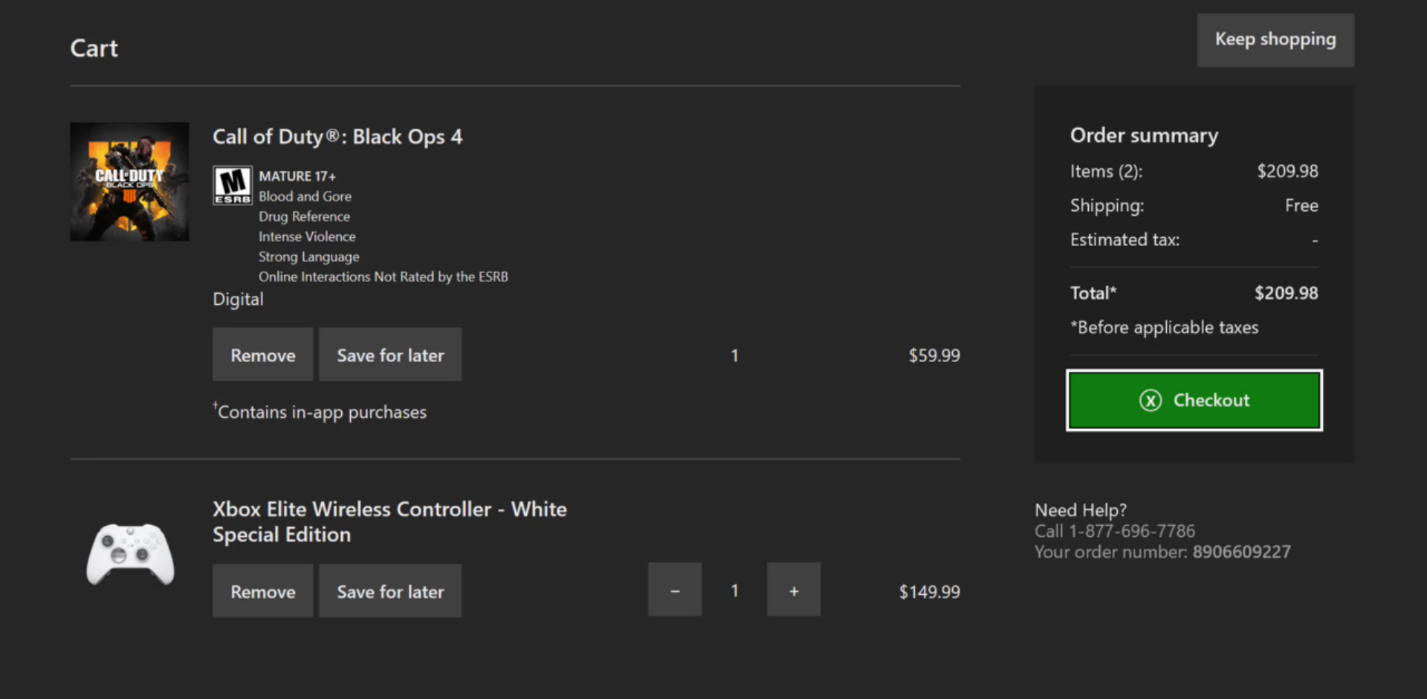
As we mentioned previously, we’ve extended the existing Shopping Cart to work with games and apps for the Xbox One and Windows 10 PCs. Today, the feature is once again available for testing. Whether you’re shopping for games or apps for Xbox One and/or Windows 10 PCs, hardware or accessories, the improved Shopping Cart means you only have to go through checkout once.
How to add a game or app to the Shopping Cart:
- Head to the Microsoft Store on Windows 10 PCs, online or on Xbox One (Xbox Insiders only)
- Navigate to the product details page for the item you wish to add to your cart
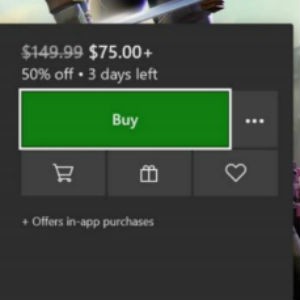
- Look for the “Add to Cart” button underneath the “Buy” button
- Select the “Add to cart” button
- To view your Shopping Cart, select the “Shopping Cart” button at the top of the Store navigation
- To remove an item from your Shopping Cart, navigate to that particular item on your Shopping Cart, and select “Remove”
Ready to check out? Click on the “Checkout” button to the right of your cart to complete your order.
Not ready to purchase a particular item? Navigate to that item in your Shopping Cart and select “Save for later.” We’ll remove that item from your cart and save it in a handy location right below the Shopping Cart itself for future reference.
Additionally, the updated Shopping Cart is persistent and works across Microsoft Store on Xbox One, Windows 10 PCs, and online. So, if you add or remove an item from your cart in one store, those changes will be reflected in the others.
Xbox Insiders can begin using the improved cart today, and shortly after Windows Insiders can begin testing the feature. In a few weeks, all customers using the Microsoft Store on Xbox One, Windows 10 PCs and online can start using it.
Wish Lists
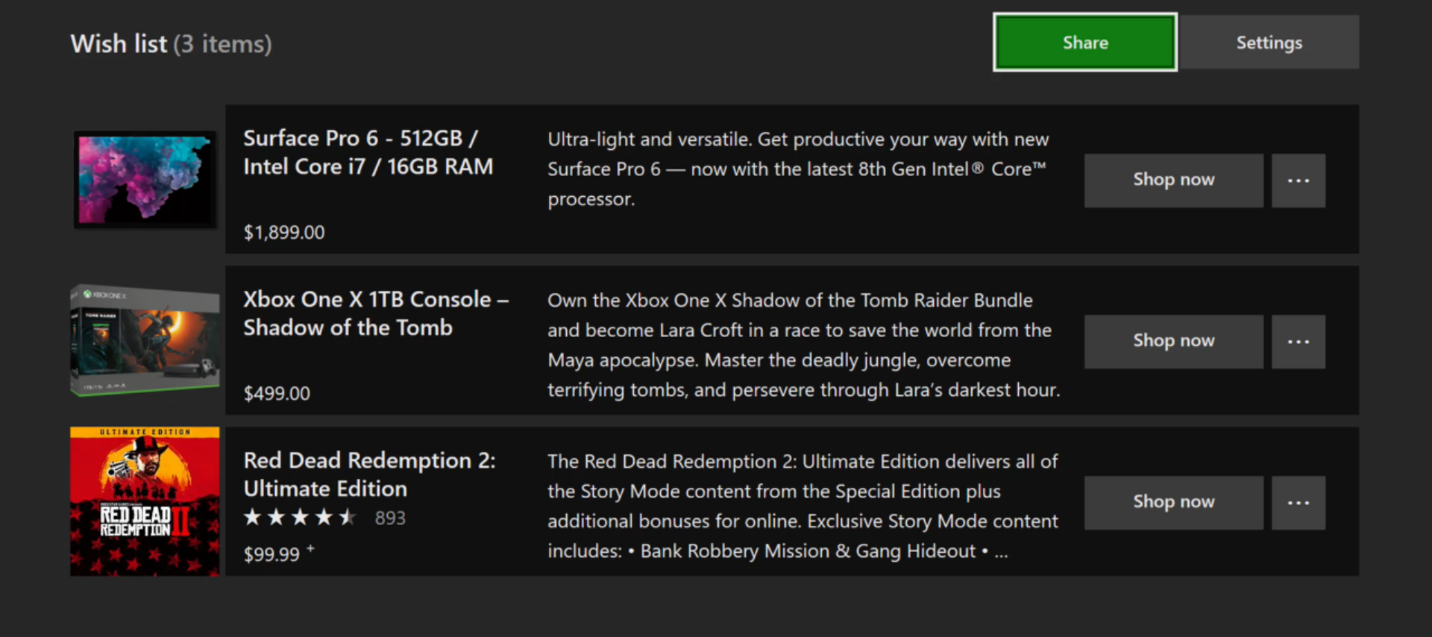
Later this week, customers can begin using the new Wish List feature, which supports all physical products and digital games and apps in the Microsoft Store. The persistent and works across the Microsoft Store on Xbox One, Windows 10 PCs and online, so if you’re shopping on the Microsoft Store on your Xbox and add a digital game to your wish list, that game will appear in your Wish List in the Microsoft Store on Windows 10 PCs and online.
Sale pricing and badging is also supported within the Wish List, so customers will quickly be able to see when items on their Wish List go on sale.
How to add items to your Wish List:
- Head to the Microsoft Store on Windows 10 PCs, online or on Xbox One (Xbox Insiders only)
- Navigate to the product details page for the item you wish to add
- Look for the “Wish List” button underneath the “Buy” button
- Select the “Wish List” button
- To view your Wish List, activate the pull-down menu at the top of the Store navigation, and select the “Wish List” option
- To remove an item from your Wish List, navigate to that particular item on your Wish List, and select “Remove”
A customer’s Wish List can be kept private or made public and shared with others.
How to share a Wish List:
- Click on the “Settings” link in the wish list
- Select “Make the wish list public”
- Then, click on the “Share” button to share with friends and family
Note: On Xbox, customers will be able to share their public wish list with a list of their Xbox Live friends.
The Wish List feature will be initially be made available to all customers in all supported markets using the Microsoft Store on Windows 10 PCs and online, as well as to our Xbox Insiders. The Wish List will be available to all Xbox customers in a few weeks.
Thanks to the fans who provided suggestions and feedback regarding these features on both the Windows Feedback Hub app and the Xbox Ideas site. And we’d like to give a special shout out to our Xbox and Windows Insiders who tested the previous iteration of the new cart. Please don’t hesitate to let us know how we can continue to improve your shopping experience. Thanks!