

As many Xbox One Update Preview participants may have already purchased or else plan to purchase an Xbox One X in the near future, we’d like to remind you how to enroll your new Xbox One X (or any new console) in the Xbox One Update Preview. Here’s how to make sure your console is properly set up for Preview updates:
- Sign in on your new console.
- Launch the Guide (press the Xbox button), navigate to My games & apps > Ready to Install and install the Xbox Insider Hub app.
- Launch the Xbox Insider Hub and navigate to Insider content > Xbox One Update Preview.
- Select Join or Manage.
- Choose the desired Preview group (i.e. Xbox One Update Preview Omega) from the list and select Done.
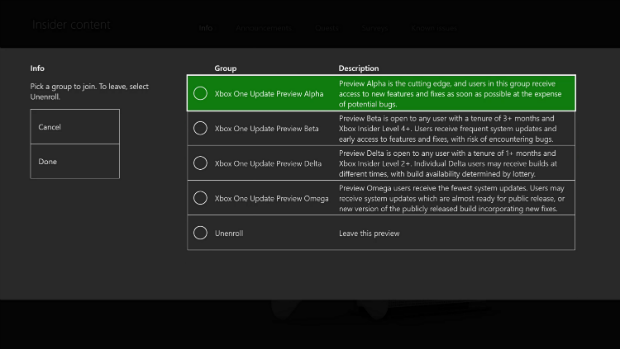

NOTE: You can enroll all your consoles in any Preview group you’re eligible for (i.e. a Preview Alpha participant can enroll all their consoles in Preview Alpha).
NOTE: You can unenroll a console you no longer own/can’t access in the Xbox Insider Hub by navigating to Settings > Manage devices.
Your console registration will be processed shortly after completing the steps above, and your console will prompt you to download a new system update (if a new system update is available to that Preview group) at that time.
Enjoy your new console, and we’ll see you on Xbox Live!