


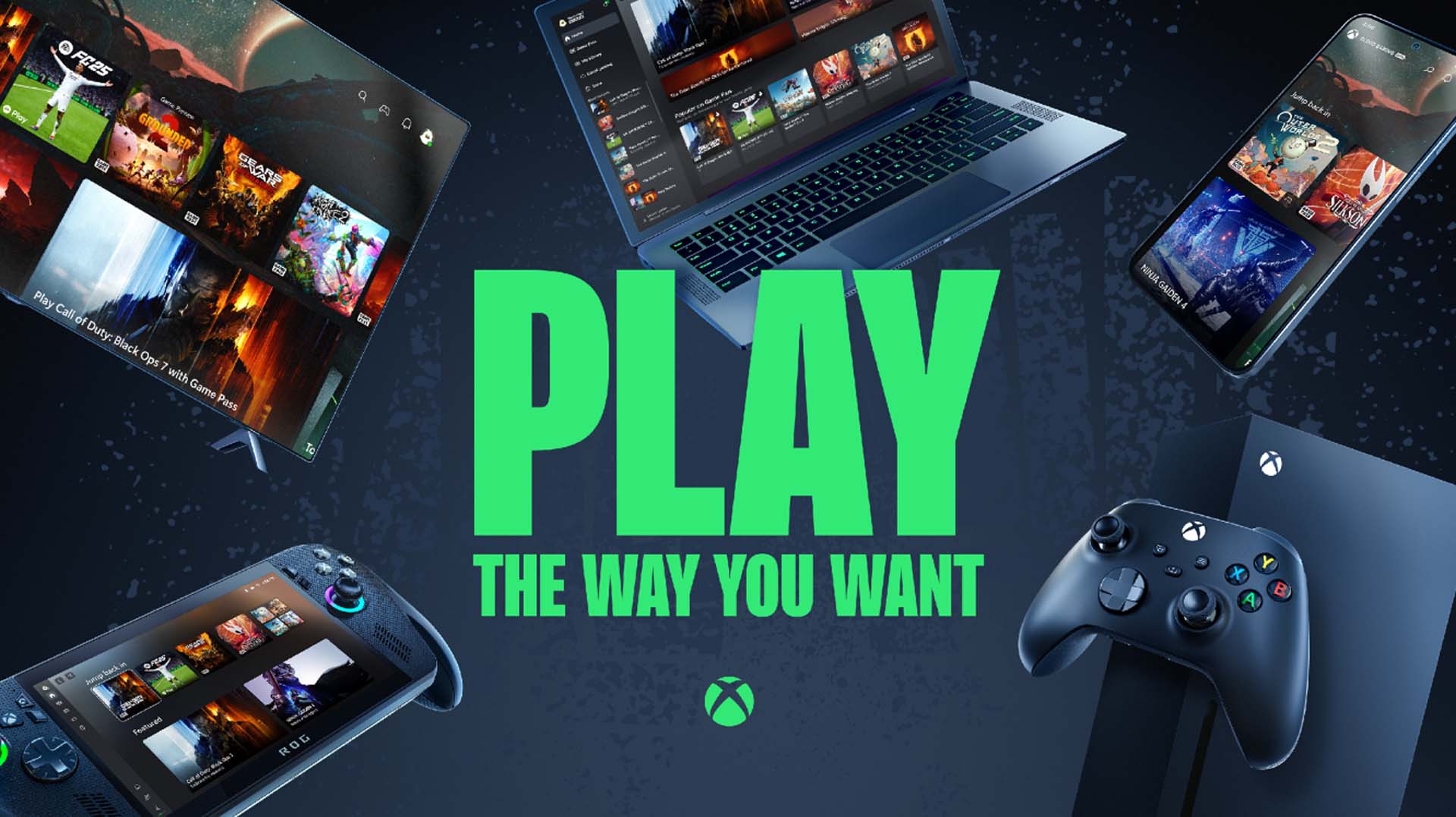
Consoles and PCs now have a powerful new partner offering even more ways to play: the cloud. With Xbox Cloud Gaming, you have access to a huge and dynamic library of the latest and greatest titles, wherever there’s a compatible screen, a stable internet connection, and a cloud-supported Xbox Game Pass subscription.
Xbox Cloud Gaming is now out of beta and available with Xbox Game Pass Essential, Premium, and Ultimate subscriptions, meaning it’s easier than ever to check out cloud streaming. Overall cloud gaming hours have gone up 45% since this time last year as the service has rolled out to millions of new gamers around the world, with particularly strong uptake in Argentina and Brazil.
Below we’ll go over where you can play and everything you need to get started (which you’ll likely already have).
What is Xbox Cloud Gaming?
Xbox Cloud Gaming is a benefit included with most Game Pass plans that allows you to play games anywhere you have a compatible, internet-connected device (such as a PC, TV, or even your phone). Xbox Cloud Gaming lets you stream your games like you stream your shows and movies, through apps and browsers on the devices you already have – and it’s playable with a variety of game controllers and other input methods.
What You Will Need
Xbox Game Pass
Unlimited cloud gaming is included with Xbox Game Pass Essential, Premium, and Ultimate plans. Xbox Game Pass is our monthly subscription service that provides access to an ever-growing library of games, online multiplayer, in-game benefits for popular favorites like League of Legends and Call of Duty: Warzone, store rewards, and more with each plan. In addition to streaming from the cloud, you can also download Game Pass titles directly to your preferred console, PC, or handheld device for offline play.
Xbox Game Pass Essential offers unlimited cloud gaming for as low as $10/month and access to more than 50 games. Xbox Game Pass Premium includes everything from Essential as well as access to 200+ games across console, PC, and supported devices for $14.99/month. For the best all‑around experience, Xbox Game Pass Ultimate delivers unlimited cloud gaming, 400+ games across console, PC, and more devices, day‑one new titles, online console multiplayer, plus added benefits like EA Play, Fortnite Crew, and Ubisoft+ Classics, as well as in‑game benefits across Riot titles and Rewards with Xbox — at no extra cost.
Supported Platforms
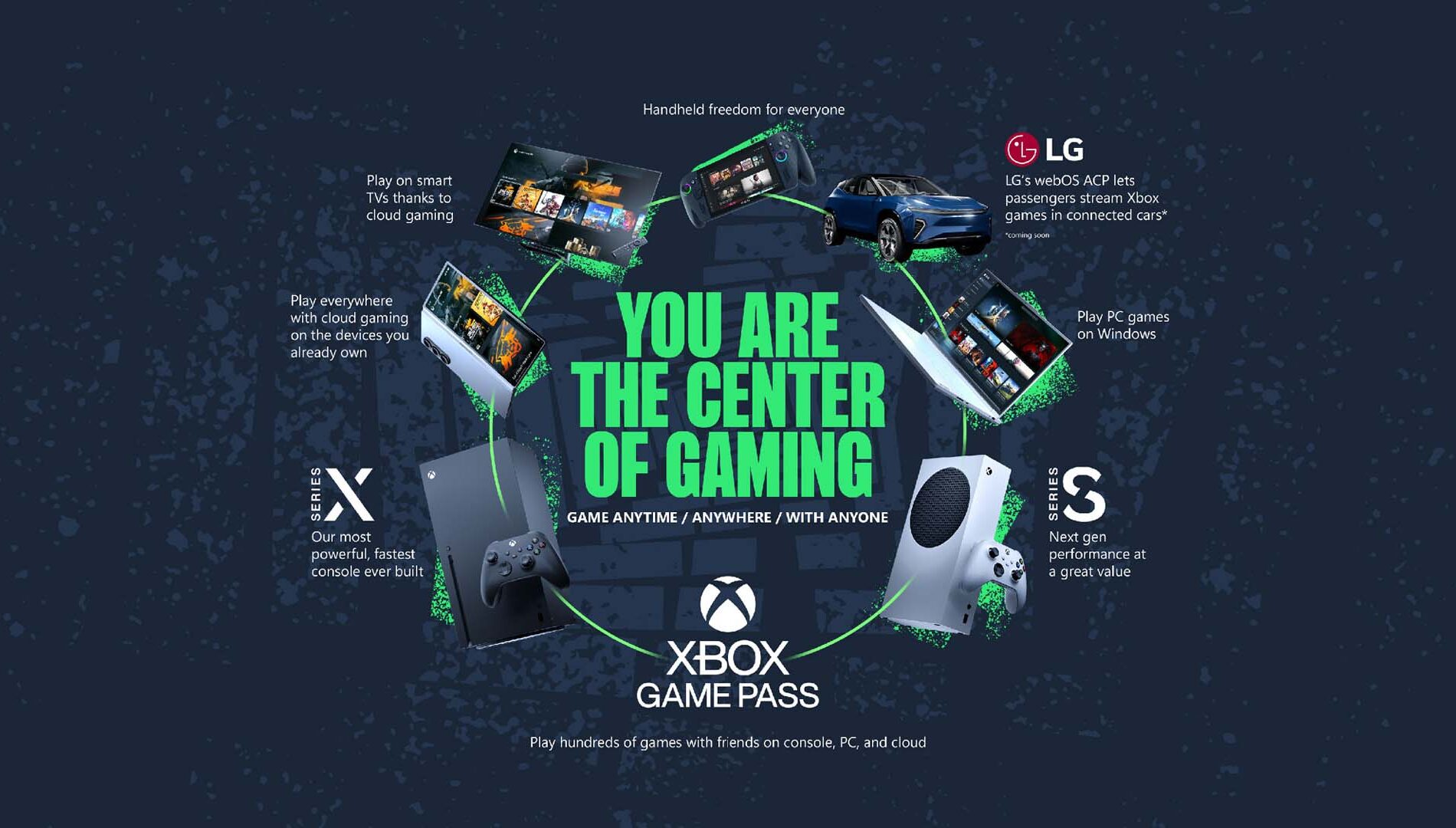
The following devices currently support Xbox Cloud Gaming (with more details here):
- Xbox Consoles – Xbox One and later. Why stream games to a gaming console? It can be a great way to try a title before you download, or to play newer Xbox Series X games on your trusty Xbox One.
- Windows PCs – Windows 10 version 20H2 and later
- Mac Computers – MacOS 14.1.2 and later
- Chromebooks – ChromeOS 85 and later
- Gaming Handhelds – Including ROG Xbox Ally, ROG Xbox Ally X, Logitech G Cloud, and Razer Edge
- Steam Deck – Support is in beta
- Android Phones and Tablets – Android OS 12.0 and later
- Apple Phones – iOS 14.4 and later
- Apple Tablets – iPadOS 14.4 and later
- Smart TVs and Streaming Devices – Including those from LG, Samsung, and Amazon
- Meta Quest VR – Including Meta Quest 2, Meta Quest Pro, Meta Quest 3, Meta Quest 3S, and Meta Quest 3S Xbox Edition
- Cars – Coming soon!
Internet Connection
Whatever device you choose to play on, it’s recommended that you have an internet connection speed of at least 20 Mbps to ensure a stable connection while cloud gaming. If you don’t know what your connection speed is, you can use any number of free online speed tests, such as Speedtest.net, Fast.com, or MeasurementLab.
Where possible, it’s recommended that you play over a wired, Ethernet connection, but it’s also possible to play over 5 GHz Wi-Fi or 5G with capable devices. If your wireless router is dual-band, broadcasting at both 5 and 2.4 GHz, you may need to make sure that your device is properly set up to only connect over the 5 GHz network.
Controller
Most games require a gamepad to be connected to your device, either wired or wirelessly. If you have nearly any kind of contemporary game controller, Xbox Cloud Gaming probably supports it, allowing you to use whatever hardware you already have on hand. This includes Microsoft’s own official Xbox controllers and those made by direct partners, as well as a wide range of verified controllers from third-party manufacturers, such as 8BitDo, GameSir, Backbone, or even Sony’s DualSense.
See a full list of supported manufacturers here. If you’re playing on a smart TV or streaming device, check compatibility here.
Many games are also playable by mouse and keyboard as well as touch, for devices that support those respective modes of input.
If you really want to game in style, check out the Xbox Design Lab for a variety of special branded and customizable controllers to suit your personal sense of style.
Supported Regions
Xbox Cloud Gaming is supported in a growing list of currently 29 countries all over the world, including India most recently. If you’re not sure whether yours is included, find out here.
What You Can Play
Xbox Game Pass
In total, the Xbox Game Pass library includes hundreds of games across all genres, ranging from indie curios to the biggest AAA blockbusters. At this time, more than two thirds of those are enabled for cloud streaming, with more coming all the time.
Game Pass Ultimate subscribers are also given access to EA Play and Ubisoft+ Classics, which adds additional cloud-playable titles to their libraries from those respective publishers.
Stream Your Own Games
Many titles not included in Game Pass are still cloud playable, which means that you can stream them if you own them. Progress is saved and shared across all platforms, so you can pick up and play your games your way, wherever you are. See the full list.
How to Get Started
The main division between ways to play with Xbox Cloud Gaming is whether you connect through an app or through a web browser. While the means may be slightly different, the results are the same.
App
For consoles, the process is as simple as tabbing over to your library and Game Pass, then selecting a cloud-enabled game. The other devices listed above might just require the additional step of going to their respective app store and downloading the Xbox app first if it’s not already installed, then opening it and signing in to access your library.
Browser
For devices running Android, MacOS, iOS, iPadOS, and ChromeOS, the cloud streaming works through a web browser, rather than a dedicated app. First make sure that your browser version is supported here and update if necessary. Then navigate to Xbox.com/play, sign in, and start gaming on the cloud. Selecting the Menu button, then Add to Home Screen will make it easier to access directly.
Steam Deck support being limited, setup is more involved, and requires going to desktop mode and installing Microsoft Edge, with detailed instructions linked above.
See You in the Cloud
That should cover everything you need to get started with Xbox Cloud Gaming. If you have any additional questions, our rigorous support pages have you covered. Otherwise, you should go check out the available library and start playing something.
Happy gaming!